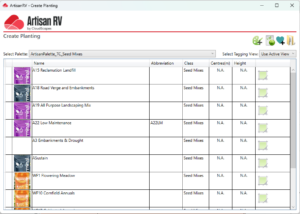
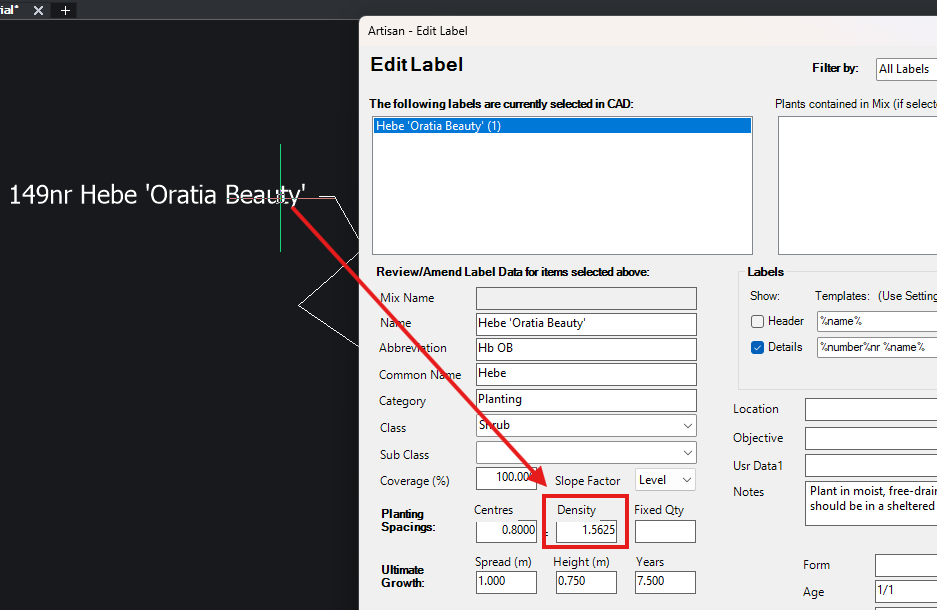
Plant Spacing values are typically used to calculate planting numbers for Area and Linear Planting. In Artisan (AutoCAD or BricsCAD versions) and of course, ArtisanRV for Revit you can specify Centres or Densities. Change one, and it automatically overrides the other.
- Centres (the distance between plants – best for individual placement)
- Density (plants per square metre or per metre run – best for large scale coverage).
Behind the scenes in Artisan and ArtisanRV
Here’s the formula doing the work behind the scenes:
- Density (Area) = 1 ÷ (Centre Distance²)
- Density (Length) = 1 ÷ Centre Distance
So if you set Centres at 800mm, Artisan calculates a Density of 1.5625; or 1.56 plants per m². That is perfectly accurate and calculated – but not exactly a tangible round number of plants. Artisan and ArtisanRV is calculating, not rounding – and that’s in metric or imperial.
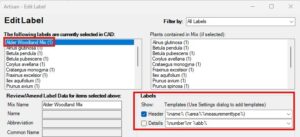
Whole Numbers in Plant Labels
If you want whole number densities in your schedules, set them directly using Edit Planting or the Plant Browser. Define density as 2 plants/m² there, and Artisan works out the correct Centres for you, without guesswork, decimal places or 0.56 of a plant.
Whichever best suits your purpose or palette, pick that. Artisan and ArtisanRV will handle the conversion.
If you need round numbers in your reports, start from plant density, not centres.
Want maximum control in your planting designs?
For the Help File to show you where and how, visit the CloudScapes Hub. You can explore all the other tutorial files within the Hub – from palette building, to browsers and schedules – plus terrain tools too.
Ready to try Artisan with AutoCAD or BricsCAD? Download a 30-day FREE TRIAL.