Space on your planting designs is at a premium. CS Artisan, the intelligent landscape design plugin for AutoCAD and BricsCAD, has the answer when it comes to mix labels.
To declutter your planting plans, you can hide and summarise components and labels, toggling them on and off to suit your intent.
With complex shrub mixes, for example, you might not always need to list the plant variety within that mix. Sometimes, it will just be enough to label it as a shrub mix with its square metreage.
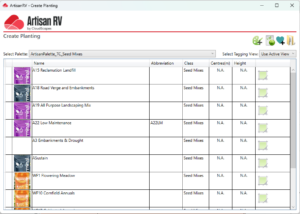
Plant Mixes
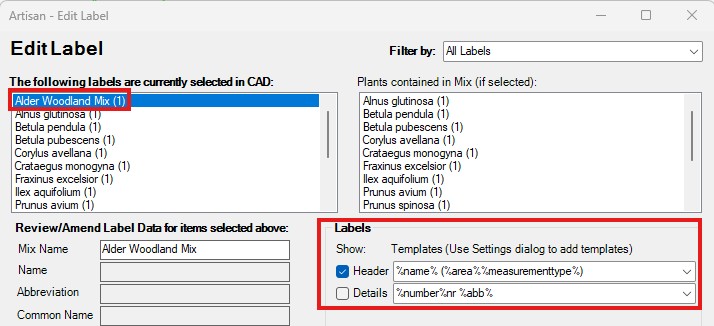
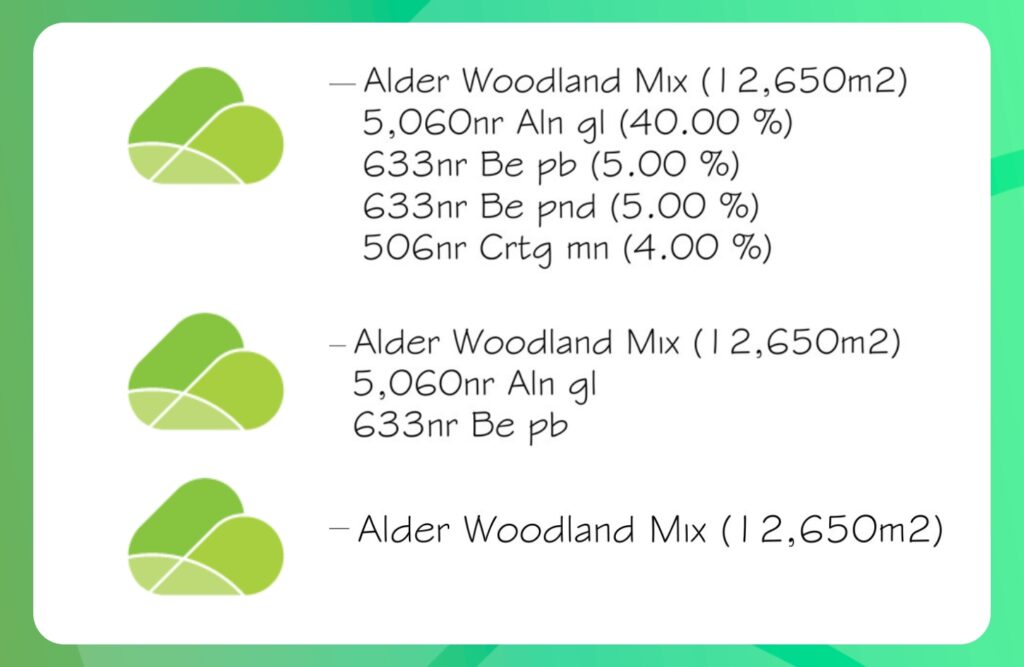
When you apply a planting mix to an area, Artisan can display the label in two ways. By default, every component species within the mix is listed on your drawing. This might be useful for detailed technical drawings, but might then be overwhelming and cluttered on a design presentation.
Switch on the simplified mix label option in Artisan, and you can suppress all the individual component entries. Now, your designs just show the mix name, e.g. “Mixed Shrub Planting” and its square metreage. Clean, clear, and uncluttered.
As with every element in Artisan, your data integrity stays completely intact. The full component breakdown, percentages, and specification information remain embedded in the model and continue to flow through to your schedules and reports. You’re not losing anything – you are just keeping your planting plans visually clear.
This is particularly powerful for client-facing presentation drawings, planning submissions, or any stage where clarity matters more than technical granularity. One toggle, and your visuals go from crowded to polished simplicity.
It’s a small feature with a big impact. Highlighted in a client request, and delivered quickly by the Development team, it is another handy tooltip for Artisan, saving time (and space!) for landscape professionals working in AutoCAD every day.
Want to simplify your plant mixes?
For current users of CS Artisan with AutoCAD and BricsCAD environments, this will already be available if you have updated to the latest version.
For the Help File to show you where and how, visit the CloudScapes Hub. You can explore all the other tutorial files within the Hub – including non-planting labels and their label options too.
Ready to try Artisan with AutoCAD or BricsCAD? Download a 30-day FREE TRIAL.